How to Color a Coloring Page Online
To color a page online, open Color Online or press Color it online on any free coloring page. Pick a color, then tap or click a shape to fill it, or paint with a brush. It’s free and runs in your browser: nothing to install, and no account needed to color.
What you need
- A web browser on a computer, tablet or phone.
- A mouse, a trackpad, a finger or a stylus.
- An account is optional. You can color, save your progress on your device, share and download a few pictures without one. A free account adds unlimited downloads, saving to your account across devices, and challenges (see Do I need an account?).
Step 1: Choose a picture
When you open Color Online, a picture is already on the page, ready to color. The row of small pictures under it is your picture strip. Tap any of them to switch. Use the ‹ › arrows at the ends when there are more than fit.
There are a few ways to get a picture into the studio:
- Starter pictures. Six simple pictures are always in the strip: a flower, a butterfly, a car, a house, a rocket and an ice cream.
- Any free coloring page. Open a page from the free coloring pages library and press Color it online. It opens in the studio and goes first in the strip. Pages for toddlers and preschoolers, kids and teens and adults all work the same way, and so do name pages.
- A page you made yourself. Describe any idea on the Create page, and press Color it online on the result. If you're signed in, your 12 most recent creations also show up in the strip automatically.
- Your own photo. First turn it into line art with the photo to coloring page converter, then press Color it online on the result.
- Your own line art. Press Upload (the first tile in the strip, or More → Upload on a phone) and pick a PNG, JPG, WebP or SVG from your device. Clean black outlines on white work best. The studio uses the dark lines as the walls that keep paint in, so a normal photo won't color well until you run it through the converter.
Step 2: Pick a color
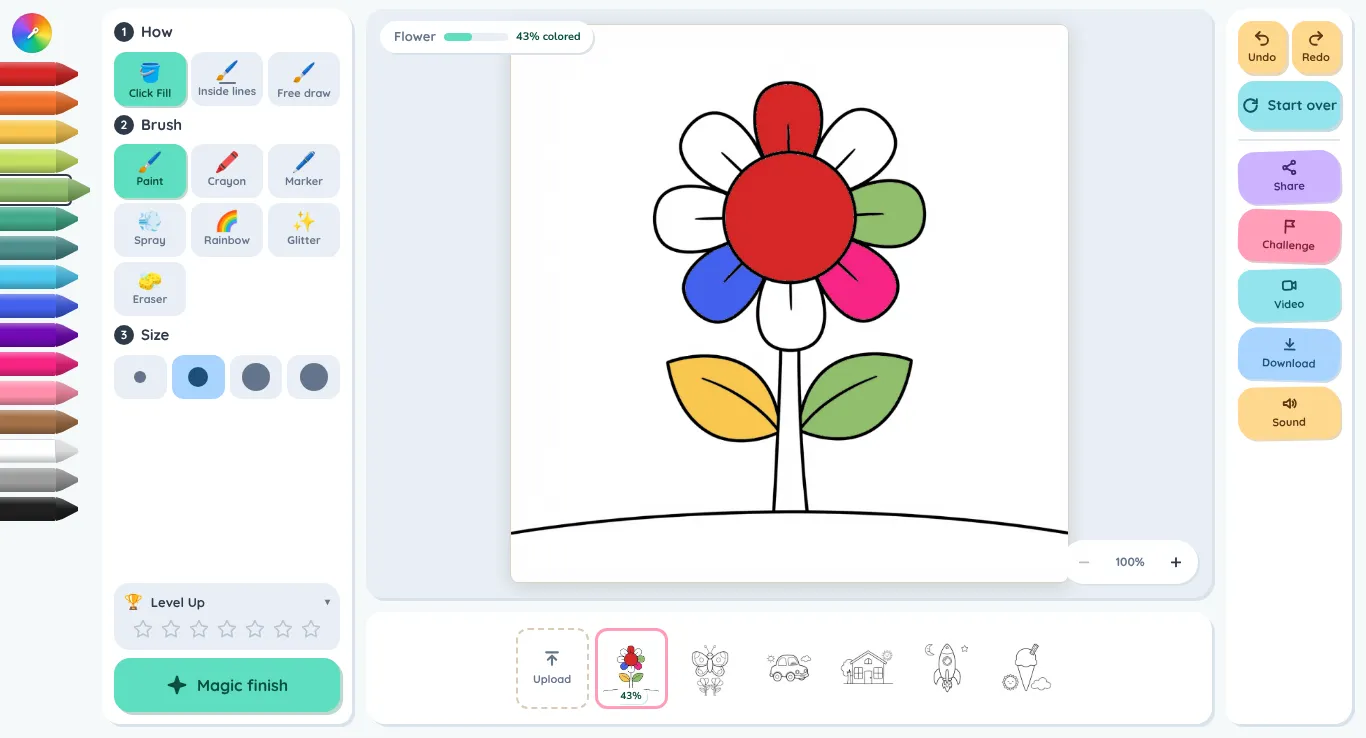
On a computer, your colors are in the crayon box down the left edge: 16 crayons, from red through to brown, white, gray and black. Click a crayon to pick it. The one you’re holding sticks out further, with a ring around it.
On a phone or small tablet, tap Colors in the bottom bar to open the Pick a color panel.
Want a shade that isn’t there? Press the rainbow circle with the dropper (My own color). Two sliders appear: one for the color and one for light or dark. Once you’ve painted with a color you made, it gets its own crayon under the main 16 (the last three you used), so you can go back to it.
Step 3: Choose how to color: Click Fill, Inside lines or Free draw
At the top of the tools, under 1 How, there are three choices:
- Click Fill 🪣 (the default). Tap or click inside a shape and the whole shape fills with your color. It’s the quickest way to color, and the easiest for young children.
- Inside lines 🖌️. Paint with a brush, but the paint stays inside the shape where you started the stroke, so it can’t go over the lines. Good for shading or using two colors in one shape.
- Free draw 🖌️. Paint anywhere, like a real brush on paper. The black outlines always stay on top, but the paint can cross from one shape into the next.
On a phone, the same three buttons sit just above the bottom bar. The studio remembers your choice in this browser, so it opens the same way next time.
Step 4: Pick a brush and a size
Under 2 Brush (or Brushes on a phone) are seven tiles:
| Brush | What it does |
|---|---|
| 🖌️ Paint | Smooth, solid color. |
| 🖍️ Crayon | Waxy texture with paper grain showing through. |
| 🖊️ Marker | See-through felt-tip ink. Going over it once or twice makes it darker, like a real marker. |
| 💨 Spray | Soft airbrush speckles. |
| 🌈 Rainbow | The color changes as you paint, so one stroke becomes a rainbow. |
| ✨ Glitter | Gold paint that sparkles on screen. |
| 🧽 Eraser | Rubs paint out. In Click Fill, one tap clears a whole shape back to white. |
The brush also works with Click Fill: pick Crayon and a tap fills the shape with crayon texture, pick Spray and you get an airbrushed fill. (Filling a whole shape with Rainbow unlocks after three finished pictures; see Step 6.)
Under 3 Size are four dot buttons, from fine to fat. Use small sizes for details and big ones for backgrounds.
Step 5: Fix mistakes, zoom in, and let Magic finish help
Undo and Redo. Press Undo to take back your last action. It goes back up to 12 steps. Changed your mind? Press Redo, right next to it, to bring it back. On a keyboard, Ctrl+Z (⌘Z on a Mac) undoes too, and Ctrl+Y or Ctrl+Shift+Z redoes.
Start over. Start over (on the right on a computer, under More on a phone) wipes the picture back to blank line art. If you press it by mistake, Undo straight away brings your coloring back.
Zoom. Small shapes are easier with zoom:
- On a phone or tablet, pinch with two fingers to zoom in, and drag with two fingers to move around. One finger always paints.
- On a computer, hold Ctrl (or ⌘) and scroll, or pinch on the trackpad. When you’re zoomed in, scrolling moves the picture.
- Or use the − 100% + buttons in the bottom corner of the picture. Tap the percentage to see the whole picture again.
Only the picture zooms, never the buttons, so children don’t get stuck zoomed in on part of the screen.
How far along am I? The bar at the top-left of the picture shows how much is colored (for example, “62% colored”). At 99% a What’s left? 👀 button appears. Press it and the shapes you missed flash pink.
Magic finish. Press Magic finish (Magic on a phone) and the studio colors every shape you haven’t done yet in a sweep that takes about two seconds. Shapes you’ve started get finished in your own color. The rest get a cheerful mix of colors. Nothing you already painted is changed, and Undo takes it back.
Step 6: Finish, save and share your picture
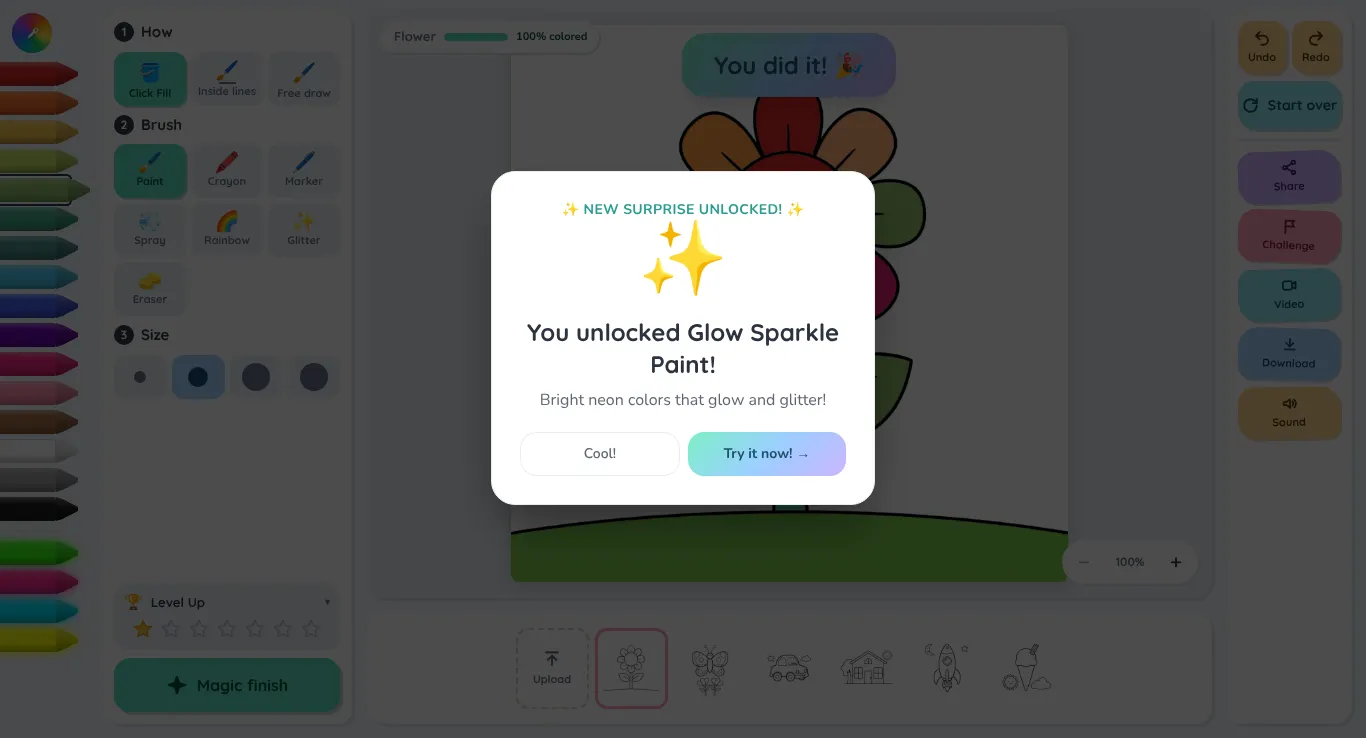
When every shape is colored, the meter reaches 100%, confetti falls and a You did it! 🎉 banner pops up. The first time, the studio asks What should we call your gallery? Type a name (or press Maybe later). It goes on your videos and challenges, and on the Community wall if you’re signed in.
Your finished picture is saved for you automatically:
- Everyone: in My Gallery on this device (the last 40 finished pictures).
- Signed in: in your account too, so it’s there on any device.
Then, from the buttons on the right (or under More on a phone):
- Download saves the picture as a PNG with ColoringPageDream.com in the corner, named after the picture.
- Print: open the downloaded PNG and print it from your device.
- Share makes a web page for your picture with its own link. On a phone or tablet, your device’s normal share menu opens. On a computer you get Copy link plus WhatsApp, X, Facebook and Email. Anyone who opens the link sees your picture and a Color your own button.
- Video makes a short speed-coloring video that replays your picture from blank to finished, with music-box music. Press 💾 Save to keep the file or 🔗 Share to send a link.
- Challenge (free account needed) sends a friend a blank copy of the same page. They color it their way, and every finished version shows up side by side on the challenge page.
- Sound turns the gentle music-box notes and sound effects on or off.
Community wall. If you’re signed in, a picture you finish at 100% from a free page, a starter or one of your own creations can appear on the Community wall. It shows under your first name and last initial, or a made-up nickname if you haven’t given a name. Uploaded pictures and challenge pages stay private.
Level Up. Every finished picture counts toward new surprises, shown in the Level Up panel:
| Finished pictures | Unlocks |
|---|---|
| 1 | Glow Sparkle Paint (neon colors that glow) |
| 3 | Rainbow Fill |
| 5 | Sticker Stamps (star, heart, smiley, flower, sparkle) |
| 7 | More Stickers (paw, kitty, cupcake, butterfly, rainbow) |
| 9 | Metallic Pens (gold, silver, bronze, chrome blue, emerald, holographic) |
| 10 | Galaxy Paint (paints a starry night sky; press it again for a new sky) |
Stickers stamp where you tap, or drag to make a trail. In Click Fill, a sticker fills the whole shape with copies of itself.
Coming back to a picture later
You don’t need to press save. While you color, the studio saves your picture in this browser every few seconds, and again when you switch pictures or leave the page.
- Next time, the picture is waiting at the front of the strip with a % badge. Open it and you’ll see ✨ Continuing from last time. Keep going, or press Start this one again for a clean page.
- Unfinished pictures are also listed in My Gallery under Colored art → Still coloring. Press Keep going → to carry on.
- Signed in? Your progress is also saved to your account (about every 15 seconds, and when you leave), so you can start on a tablet and finish on a laptop.
One exception: a picture you upload from your device isn’t saved while it’s unfinished. Finish it in one go, or download it before you leave.
Tips
For young kids
- Start in Click Fill with one of the starter pictures. One tap fills a shape, so there’s nothing to “go over the lines”.
- Turn the screen sideways on a phone for a bigger picture.
- Undo and What’s left? 👀 take the frustration out of near-misses.
- Level Up gives them something to work toward: the first surprise comes after one finished picture.
For parents and teachers
- Kids don’t need an account to color, and nothing needs installing.
- Progress saves itself in the browser, so a picture left half-done is there next time on the same device.
- Want something specific, like a child’s name or their favorite animal? Make it on the Create page or pick one of the name pages.
- More ideas for different ages: best coloring styles for kids.
For adults
- For detailed pages, try the teens and adults collections or the geometric pages.
- Use Inside lines with Marker or Crayon and a small size to shade within a shape. Marker builds up darker where you go over it.
- Zoom in (pinch, or Ctrl/⌘ + scroll) for tiny areas.
- My own color plus its saved crayons makes it easy to keep to a small, steady palette.
- Why coloring helps you unwind: coloring and mindfulness.
Coloring on a phone or tablet (iPad, Android)
The studio works in the browser on iPhone, iPad and Android, with no app needed.
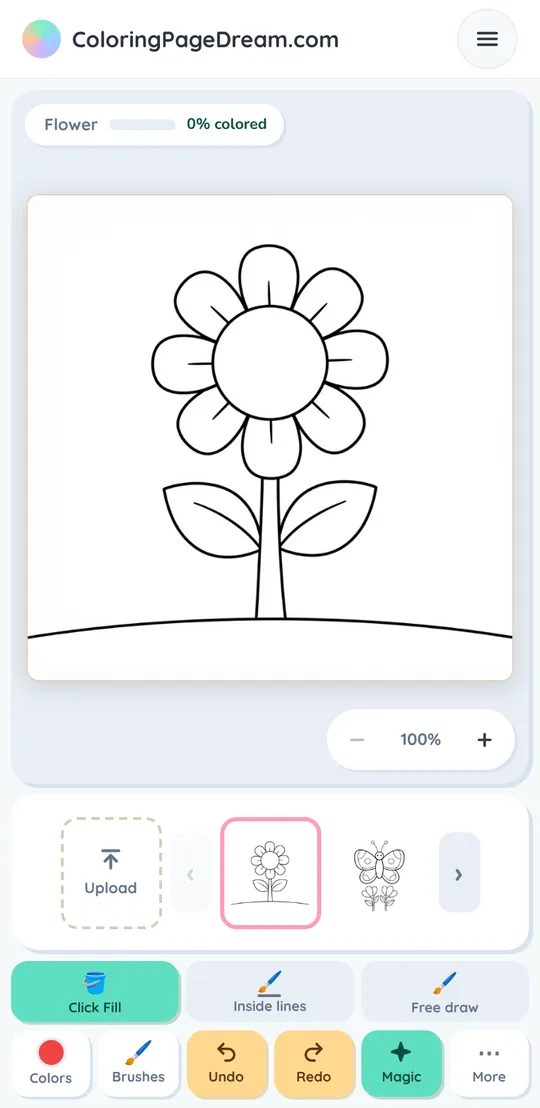
- Phones, and tablets held upright, get a compact layout: the picture fills the screen, with Click Fill / Inside lines / Free draw above a bottom bar of Colors, Brushes, Undo, Redo, Magic and More. More holds Next picture, Start over, Upload, Share, Challenge, Video, Download, Sound and Level Up.
- Larger screens (an iPad in landscape, or a laptop) get the full layout, with the crayon box on the left and the picture actions on the right.
- Pinch with two fingers to zoom and drag with two fingers to move. If a pinch starts with a tiny accidental dab, the dab is removed.
- The page itself doesn’t zoom, and a long press doesn’t pop up the browser menu, so small fingers can’t get lost.
- On a phone held sideways (landscape), the picture strip hides to give the picture more room. Use More → Next picture to switch.
- A stylus works like a finger.
Troubleshooting
- The color goes outside the lines.
- You're in Free draw. Switch to Click Fill or Inside lines. If a fill spills into the background, the outline probably has a small gap. Undo, then finish that shape with Inside lines, or zoom in and fill the pieces separately.
- Tapping does nothing.
- You may have tapped right on a black line. Tap inside the white part of the shape instead.
- The meter is stuck at 99%.
- Press What's left? 👀 to flash the shapes you missed. They're often tiny gaps or a spot hidden behind something. Or press Magic finish.
- My progress disappeared.
- Progress is saved in the browser you colored in, so it won't show in a different browser or device unless you're signed in. Clearing your browsing data also removes it. Pictures you uploaded from your device aren't saved until they're finished.
- I'm using private or incognito browsing.
- You can color, but most browsers delete the saved progress and My Gallery when the private window closes. Use a normal window or sign in to keep your work.
- Download sent me to the sign-up page.
- Without an account, you get 3 free single-page downloads (this count includes downloads of blank free pages). A free account makes downloads unlimited.
- Video says it isn't supported.
- Some browsers can’t record video. Try a recent Chrome, Edge, Firefox or Safari, or use Share instead. If it says to color a little more first, paint a few strokes and try again.
- My uploaded photo looks messy.
- The studio needs clear outlines. Turn the photo into a coloring page with the photo converter first.
Questions
- Is online coloring free?
- Yes. Coloring in the studio, the starter pictures, every free coloring page, saving progress and sharing are all free. Without an account you can download 3 pictures. With a free account, downloads are unlimited.
- Do I need an account to color online?
- No. You can open the studio and color straight away. A free account lets you download as many pictures as you like, saves your pictures and progress to your account so they follow you to other devices, lets you send and take on challenges, and lets finished pictures appear on the Community wall.
- Does it work on an iPad or a phone?
- Yes. It runs in Safari, Chrome and other modern browsers on iPad, iPhone and Android, with no app to install. Pinch with two fingers to zoom, and paint with one finger or a stylus.
- Can I color my own picture?
- Yes. Upload line art with the Upload button, make a new page from an idea on the Create page, or turn a photo into a coloring page with the photo converter and press Color it online.
- Can I print my picture after coloring it online?
- Yes. Press Download to save it as a PNG, then print the file from your computer, tablet or phone.
- Will my picture be saved if I close the page?
- Yes, in the same browser. The studio saves as you go, and the picture is waiting in the strip and in My Gallery when you come back. Signed in, it's saved to your account too. The exceptions are private browsing and pictures uploaded from your device, which aren't saved until finished.
- Is it safe for kids?
- The studio has no chat or messaging, and children don’t need to sign up or give any details to color. Sharing only happens when someone presses Share, Video → Share or Challenge, which create a link that anyone holding it can open. On the Community wall, signed-in colorers appear only as a first name and last initial, or a made-up nickname.
- Can adults use it too?
- Yes. There are detailed pages for teens and adults, geometric patterns, a marker that builds up like a real felt tip, custom colors and zoom for fine work.